This guide describes the layout, buttons, icons, messages, and user interaction with the interface.
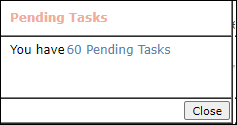
When you first open Senior Living you will see the Pending Tasks window. This will tell you how many items need approving. Some of these items may be Resident Charges, Credits, Vendor Invoices, etc. Depending upon your access you will be able to go to the pending task.
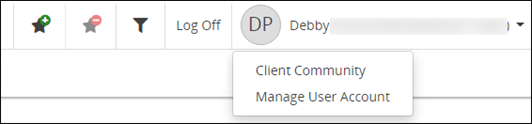
At the top right on the page you will see these icons, your ability to sign off, and your user name with several links.
 Favorites: Click the to set the page as a favorite. When you enter the name for the favorite, you have up to 20 characters. You can have up to eight favorites.
Your favorites will appear next to the icons .
To delete a favorite click  . On the pop-up select the favorite(s) to delete.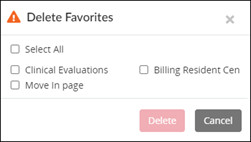
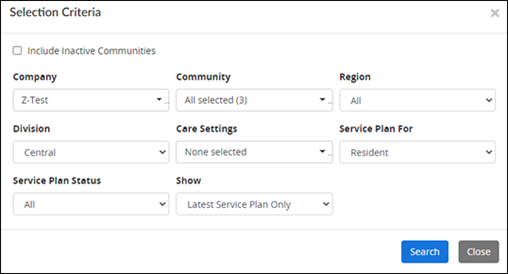
 Filter /Search: From here you will open a page where you can filter for items associated with the page you are on. The graphic is only an example, the look will vary depending upon the page the filter is accessed from. Some of the fields can be customized by the facility and others are configured by MatrixCare during implementation.
Log Off: Use this to log off instead of just closing the page with the “X”.
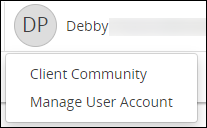
Your Initials and User Name: From the menu you can go directly to our MatrixCare Community to find documentation, release notes, guides, training, etc.
You can also change your password or password question through Manage User Account.
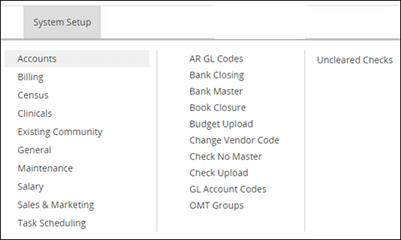
Our interface allows you to view all menus and sub-menus when you click a menu item. You will only see those modules you have access to. Within each module, the menu options are alphabetized

Show allows you to select the number of rows you want to display per page. Available row options include 10, 25, 50 or 100. The default is 10.

You can also select the page you want to view, and a message shows how many of the entries you are viewing.

If there is an up or down arrow, it means you can sort the list in ascending or descending order by clicking the up or down arrow.
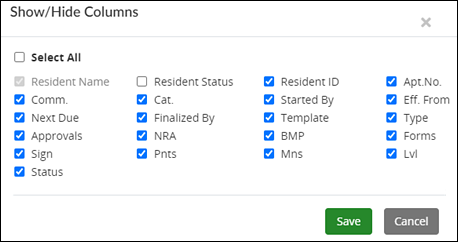
When you click this, a window with all the columns on the current page will appear. Check or uncheck to box(es) you want to see when you access the page. This is user-specific so only you will see what columns you have selected to display information.
When you enter criteria for searching, every column will be searched and matching items will display in the table.
There may be a row of buttons that help you perform needed functions for the selected area.
Example: 
F5 does an immediate refresh of the page.
F11 uses full-screen mode, removing the browser address bar and allowing usage of the full page for the software. Clicking F11 again exists the full-screen mode.
Duplicate Tab: By right-clicking on your tab, you can select Duplicate Tab, which will open the same tab. You can then go wherever you need to, while still maintaining the original tab you were on at the same time.